AI video editing
What is AI video editing?
AI video editing is using AI to change a video. Assistive tools speed up ordinary editing: cutting silences, adding captions, reframing. Generative editing, this page’s subject, changes what is in the frame: it swaps, removes, adds or restyles things in a real clip while its timing and camera stay as they were.
By the DreamBench team. Updated .
AI video editing at a glance
At a glance
- What goes in
- A video, an instruction, and often a picture of what should appear.
- What comes out
- The same clip, with the part you named changed and the rest kept.
- Main edits
- Swap, add, remove, restyle, and transfer a motion to a new character.
- What it keeps
- Timing, camera movement and, unless you change them, the people and places.
- Still hard
- Fast motion, things passing in front of each other, hair and smoke, and long clips.
Swap something
One person, object or creature is replaced; the motion stays.
Add something
A new object or character joins the scene and moves with it.
Remove something
The object goes; the background behind it is filled in.
Change the look
The style, era or lighting changes; the shapes and motion stay.
Transfer a motion
One clip’s movement drives a different character.
Which edit do I need?
Replace a person or object: A swap: the person’s motion and timing are kept and a new character or object is generated in their place, from a picture or a description. In Morph, choose Swap something and tag the replacement with a picture.
Put something new in the scene: An add: the original scene and its motion stay, and a new object or character is generated into it. In Morph, choose Add something and say where it goes.
Take something out: A removal, which is video inpainting: the object goes and the background behind it is filled in on every frame. In Morph, choose Remove something and name its shadow and reflection too.
Change the whole look: A restyle: the outlines, depth and motion of every frame are kept and their surface is repainted in the style you name, from anime to claymation. In Morph, choose Change the look.
Make a different character perform the movement: Motion transfer: the pose and timing are read from the clip and a new character performs them. In Morph, choose Transfer a motion and tag the character with a picture.
Two kinds of AI video editing
Most AI in everyday editing apps assists the editor: it finds the cuts, removes silences, writes captions and reframes a clip for a phone. It works on the footage you filmed. Generative editing changes the footage itself.
| What it does | Makes new pixels | Examples | |
|---|---|---|---|
| Assistive | Speeds up the usual edit | No | Cutting silences and pauses, captions, reframing, picking the best takes |
| Generative | Changes what is in the frame | Yes | Swapping a person, removing an object, restyling a scene, transferring a motion |
DreamBench does the generative kind, with Morph. The rest of this page is about it.
Two real AI video edits, before and after
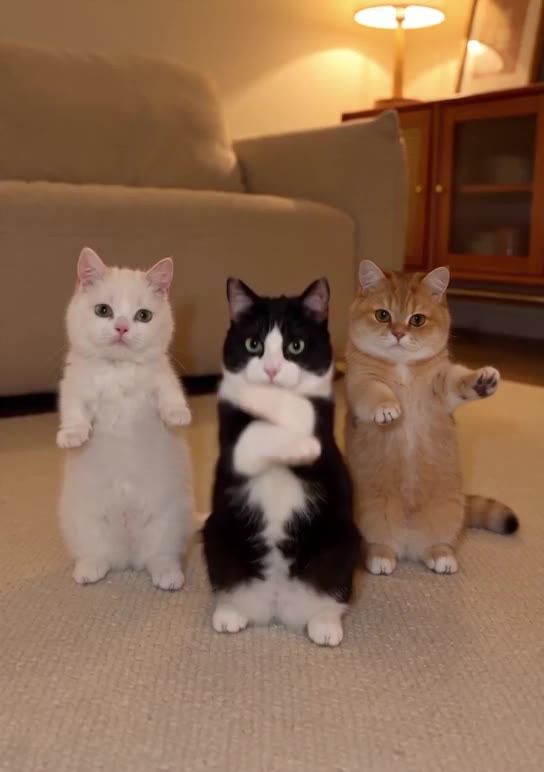
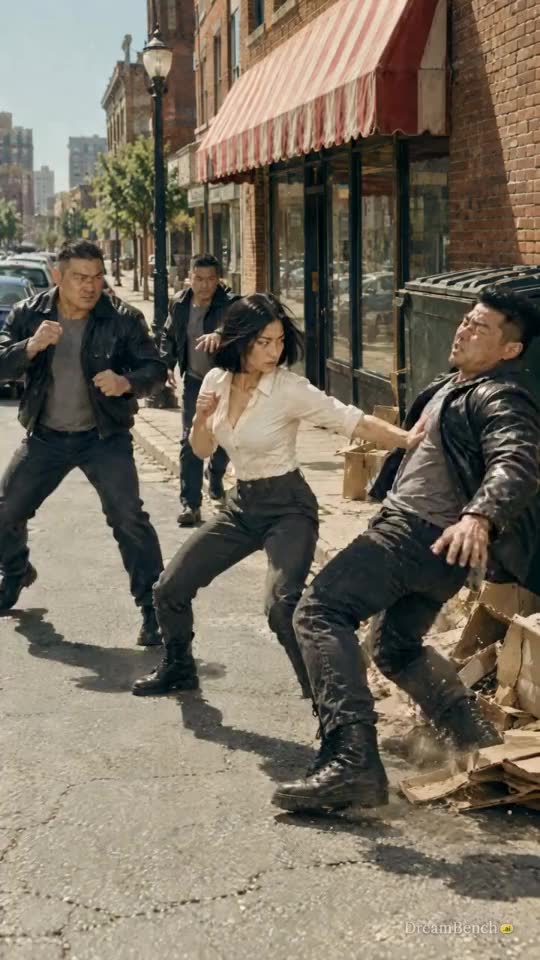
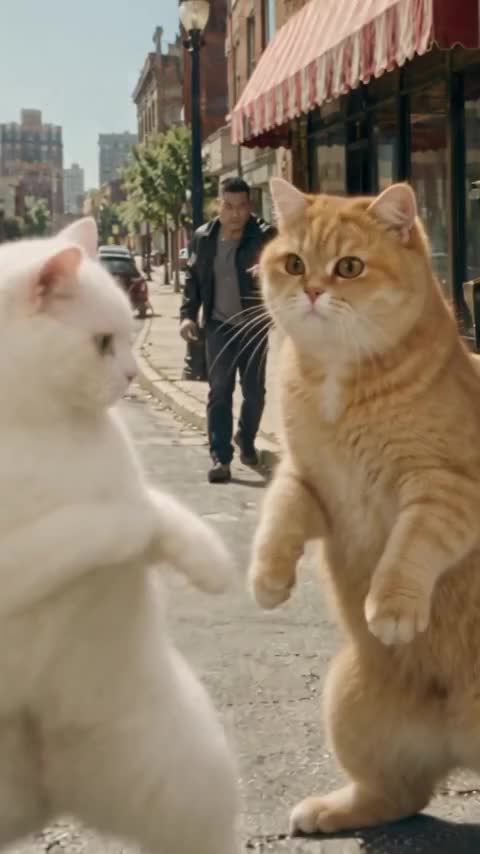
Both were made with Morph from real clips. Drag the line across each one to compare the original with the edit.
 Original
 With Morph
Change the background to @livingroom, laid out as in @floorplan, but swap the 3 cats for @yickshuncat, @oreo and @mango.
 Original
 With Morph
How AI video editing differs from traditional editing
Traditional editing arranges footage that was filmed: cut, trim, reorder, grade the color, add titles. Visual effects change what is in the frame, but by hand, frame by frame, with masks and tracking. AI video editing asks a model to make the change, and the model generates the new pixels for every frame at once.
| Traditional editing | Visual effects by hand | AI video editing | |
|---|---|---|---|
| Changes | Order, length, color, sound | Anything in the frame | Anything you can describe |
| How | Cutting existing frames | Masks, tracking and compositing, frame by frame | A model generates the new pixels |
| Time per shot | Minutes | Hours to days | Minutes, plus retries |
| Control | Exact | Exact, with skill | Approximate: you steer with words and pictures |
How AI video editing works
AI video editing works in four steps: the model finds the region you named, follows it through every frame, generates what replaces it, and blends the result so it holds still from frame to frame. It conditions on the original clip’s motion, so the new pixels move with the old ones.
Source video
The clip you upload: its motion, timing and camera stay the backbone.
Find the region
The model locates what you named and follows it through every frame.
Generate the change
New pixels for that region only: a new face, an added object, an empty background.
Blend over time
Light, shadow and motion are matched so the change holds from frame to frame.
Edited video
Everything you didn’t name is meant to look as it did.
Finding and following the region
Segmentation models outline an object in one frame and track it through the rest, even when it turns or is briefly hidden. Meta’s SAM 2 is a widely used example. For soft edges such as hair, a matting model gives each pixel a share of transparency instead of a yes or no.
Mask
Every pixel is in or out. Fine enough for a solid object, blocky on hair, smoke or motion blur.
Matte
Every pixel has a share of transparency, from 0 to 100%, so loose strands keep their softness.
Generating the change
To remove something, the model fills the hole with what was probably behind it, borrowing pixels from neighboring frames where the background was visible: this is video inpainting. To swap or add, it generates the new subject inside the region, guided by your words or a reference picture. To restyle, it keeps the outlines and depth of every frame and repaints their surface.
Keeping it steady
The hard part isn’t one good frame, it is 24 good frames a second that agree. Editing models condition on the original clip’s motion, so the new pixels move with the old ones. When that fails you see flicker, a swapped face that slides, or a removed object that ghosts back in: a failure of temporal consistency.
The kinds of AI video edit
| Changes | Keeps | Also called | |
|---|---|---|---|
| Swap something | One person, object or creature | Motion, camera, everything else | Character swap, object replacement, face swap |
| Add something | A new object or character in the scene | The original scene and its motion | Object insertion |
| Remove something | An object, a person, a sign, a boom mic | The background behind it, filled in | Video inpainting, object removal |
| Change the look | The look: style, era, season, light | Shapes, composition and motion | Video style transfer, re-rendering |
| Transfer a motion | Who is moving | The movement, beat for beat | Motion transfer, pose transfer |
The performance
A clip of someone moving: the source of the motion.
The motion
Their pose, read frame by frame: joints and timing, no appearance.
The new character
A different character generated in the same pose at the same moment.
How to write an AI video edit instruction
An edit instruction works best when it says what changes, what it changes into, and what must stay. Name things the way they appear in the clip, and give the model a picture for anything it has to invent.
| Vague | Precise | |
|---|---|---|
| Swap | Make them cats. | Swap the 3 kittens for @yickshuncat, @oreo and @mango (with a picture of each), keep the dance. |
| Background | Change the room. | Change the background to @livingroom, laid out as in @floorplan. |
| Remove | Clean it up. | Remove the man in the red jacket walking behind her, and his shadow. |
| Restyle | Make it look cool. | Restyle the whole clip as hand-drawn anime, keep the camera move and the timing. |
The first two rows are the prompt behind the kittens above: @ names point at the pictures Morph was given.
Where people use AI video editing
- Ads: one product shot in many versions, a product swapped, a scene restyled for a season.
- Social video: a trend’s dance performed by a different character, a clip restyled as anime or claymation.
- Clean-up: a passerby, a boom mic or a sign removed from a shot that can’t be filmed again.
- Pre-visualization: rough footage shot on a phone, turned into the look of the final film.
- Localization: the same scene with a different presenter or product for each market.
Where AI video editing breaks
- Fast motion and motion blur: the model loses track of the region, and the edit slips.
- Occlusion: when something passes in front of the subject, the swap can flash or tear.
- Fine edges: hair, smoke, glass and water are hard to separate from the background.
- Size of the change: a small change holds better than a whole new scene; ask for one thing at a time.
- Length: edits are made on short clips; a long video is edited in pieces.
Why does my AI edit look soft or low-resolution? On DreamBench a Morph preview is a 480p draft, made to check that the edit is right before paying for a full render; Make it HD renders it at 1080p and completes the same take, or at 720p as a fresh render. A clip that was soft, shaky or heavily compressed to begin with gives the model less to track, so the edit slips more; start from the cleanest export you have.
Changing who appears in a video can deceive. Only edit people who have agreed to it, never present an edit as real footage, and follow the rules of the platforms where you post.
How DreamBench edits video
Morph edits a clip of 4 to 30 seconds. You upload the video or pick a template, tag the characters or objects you want in it with pictures, and say what to do: swap something, add something, remove something, change the look or transfer a motion. Morph keeps the original motion and timing, and the clip’s own sound unless you turn it off.
| Limit | What it means | |
|---|---|---|
| The clip | An MP4, MOV or WebM upload, or a template; Morph edits a window of 4 to 30 seconds of it | Pick the part of a longer video that needs the edit; the rest stays as filmed and is cut back in your editor. |
| Real people | Up to 15 seconds of the clip for an edit with real people in it, with the box checked that it is you or people who agreed | The edit then renders on a lane that accepts faces; by default Morph refuses a real face, and a refused run costs nothing. |
| Pictures | Up to 4, PNG, JPEG or WebP, 10 MB each, named @Image1 to @Image4 in your words | A picture of each thing Morph has to invent: the cats and the room in the kittens edit above. |
| Words | Up to 2000 characters, or pick Edit the video or Copy the moves | Morph reads which task you mean from the words; words such as ‘copy the moves’ switch it to a new video on the clip’s moves. |
| Output | A Preview at 480p, then Make it HD at 1080p or 720p | The preview is a draft of the take; the 1080p render completes the same take, 720p renders afresh. |
| Sound | Keep the clip’s sound, on by default | The original sound is laid back under the edit at the end; turn it off to add your own track in an editor. |
Questions
Is AI video editing the same as video to video?
Mostly. Video to video is the model’s mode: a video goes in and a video comes out. AI video editing is what you do with it: swap, remove, add, restyle or transfer a motion.
Can AI remove an object from a video?
Yes. Video inpainting removes the object and fills the area with what was probably behind it, using the frames where the background was visible. It works best on small objects and steady shots.
Can AI edit my video automatically?
AI can edit a video automatically in the assistive sense: find the cuts, remove silences, add captions and reframe for a phone, with you adjusting the result. Generative editing is different: you say what to change in the frame, such as swap, remove or restyle, and the model generates it. DreamBench does the generative kind, with Morph, and leaves cutting and captions to your editor.
Can AI change the background of a video?
Yes. A generative editor keeps the subject and its motion and generates a new scene behind it, from a description or pictures of the place. The kittens edit above swaps a night road for a living room from pictures of the room.
Can AI replace a person in a video?
Yes: a swap keeps the person’s motion and timing and generates a new character in their place, from a picture or description. It needs the consent of anyone real who is shown, and most platforms require the result to be labeled.
Can AI turn a real video into anime or claymation?
Yes. A restyle keeps the outlines, depth and motion of every frame and repaints their surface in the style you name; the camera move and timing stay as filmed.
Does AI video editing change the whole clip?
It shouldn’t. A good edit changes only what you named and keeps everything else. In practice some details shift, so compare the result with the original before you use it.
How long a clip can AI edit?
Most generative editing models work on short clips of seconds, not minutes. Morph takes a clip of 4 to 30 seconds; a longer video is edited in pieces.
Will AI replace video editors?
Not the judgment. AI makes some slow jobs fast, such as removing an object or finding the cuts, but choosing the story, the pacing and what to keep stays with people.
Is it legal to swap a face in a video?
It depends on the country and on consent. Swapping someone’s face without permission can break laws on likeness, privacy or deepfakes, and most platforms require AI-changed video to be labeled: YouTube asks creators to disclose realistic content that was meaningfully altered or generated with AI, and adds a label.
Does an AI edit keep the original sound?
On DreamBench, Morph keeps the clip’s own sound: the switch Keep the clip’s sound is on by default, and the original sound is laid back under the edit at the end, the step shown as Adding the sound. Turn it off when you would rather add your own track in an editor afterward. A motion transfer keeps the original’s sound the same way, so a dance stays on its music.
Does AI video editing cost anything?
Many assistive editors include cutting and captions in a basic tier. For generative edits on DreamBench you create a free account and choose a plan, and each Morph edit uses credits from it.
What resolution does an AI-edited video come out at?
An AI-edited video on DreamBench comes out as a Preview at 480p first, a draft to check that the edit is what you asked for. Make it HD then renders it at 1080p, completing the same take, or at 720p as a fresh render; you pick when you make it HD. With real people in the clip the edit renders on a different lane, which takes no resolution choice. Download the result as an MP4 ready for TikTok, Reels and Shorts.
Can I edit a video with AI on my phone?
Yes. Morph works in a phone browser, with nothing to install: upload an MP4, MOV or WebM straight from the phone, add pictures from your camera roll, say what to change and download the result. A clip goes straight to storage rather than through the page, so a file of the size a phone makes is normal, and you pick the 4 to 30 seconds of it that need the edit.
How long does an AI video edit take?
An AI video edit on DreamBench takes minutes, not seconds: Morph prepares the clip, hands it to the video service, which may queue it and shows your place in the line, renders the edit and lays the sound back at the end. The first time a clip or your pictures go to the service they are cleared with it, which adds minutes once.
Can I use an AI-edited video commercially?
Yes, on DreamBench. Under the DreamBench Terms you may use what Morph makes for personal and commercial purposes, including advertising, monetized content and work for clients, with no separate commercial-use upgrade. The Terms don’t guarantee copyright in a result or clear another person’s rights in your upload, so only edit footage, faces and music you have the rights to, get the consent of anyone real who is shown, and label the result where the platform requires it.
Related
Terms
- Motion transferAI that takes the movement from one video and gives it to a different character.
- Video inpaintingFilling a region of a video so it fits every frame, which is how AI removes objects and people.
- Temporal consistencyHow well an AI video keeps things the same from frame to frame, without flicker or drift.
- Background removalSeparating a photo’s subject from what is behind it, with segmentation or matting models.
Sources
- SAM 2: Segment Anything in Images and VideosarXiv, read on
- YouTube Help: Disclosing use of GenAI contentYouTube, read on
DreamBench is an independent platform and isn’t affiliated with or endorsed by the companies named on this page.