Veo 3.1 is Google DeepMind’s video model for clips of up to 8 seconds with sound, dialogue included, in widescreen or vertical. On DreamBench, paste a prompt into Video for one clip made as written, or describe a whole film and Veo 3.1 makes every scene, each one yours to redo.
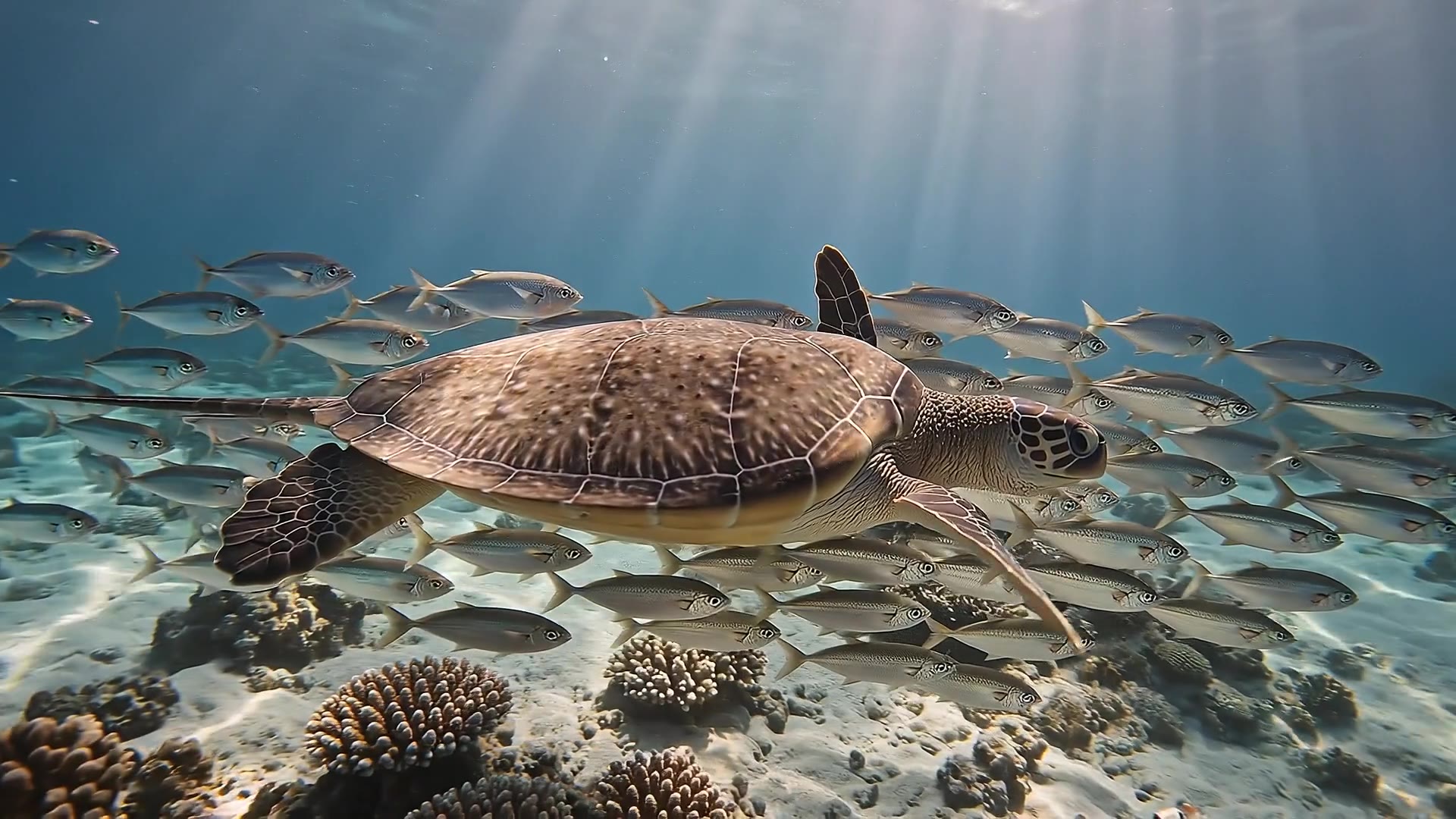
A video made with Veo 3.1 on DreamBench, and the exact prompt that made it.
1080P · 16:9 · 15S · Sound
Underwater at sunrise: light shafts sweep across a coral reef as a sea turtle glides through a school of silver fish that parts around it like a curtain. A ray lifts from the sand in a slow wingbeat of silt. The turtle rises toward the glittering surface and breaks it into the sun. Muffled underwater ambience, then one clear breath.
The length is the whole video’s: DreamBench plans the scenes, makes each one with Veo 3.1 and joins them. Create with Veo 3.1 opens Film Studio with your prompt and every setting in place.
Examples
Made with Veo 3.1 on DreamBench
Published templates, each with the prompt that made it. Use one as it is or make it your own.
1080P · 16:9 · 15S · Sound
Underwater at sunrise: light shafts sweep across a coral reef as a sea turtle glides through a school of silver fish that parts around it like a curtain. A ray lifts from the sand in a slow wingbeat of silt. The turtle rises toward the glittering surface and breaks it into the sun. Muffled underwater ambience, then one clear breath.
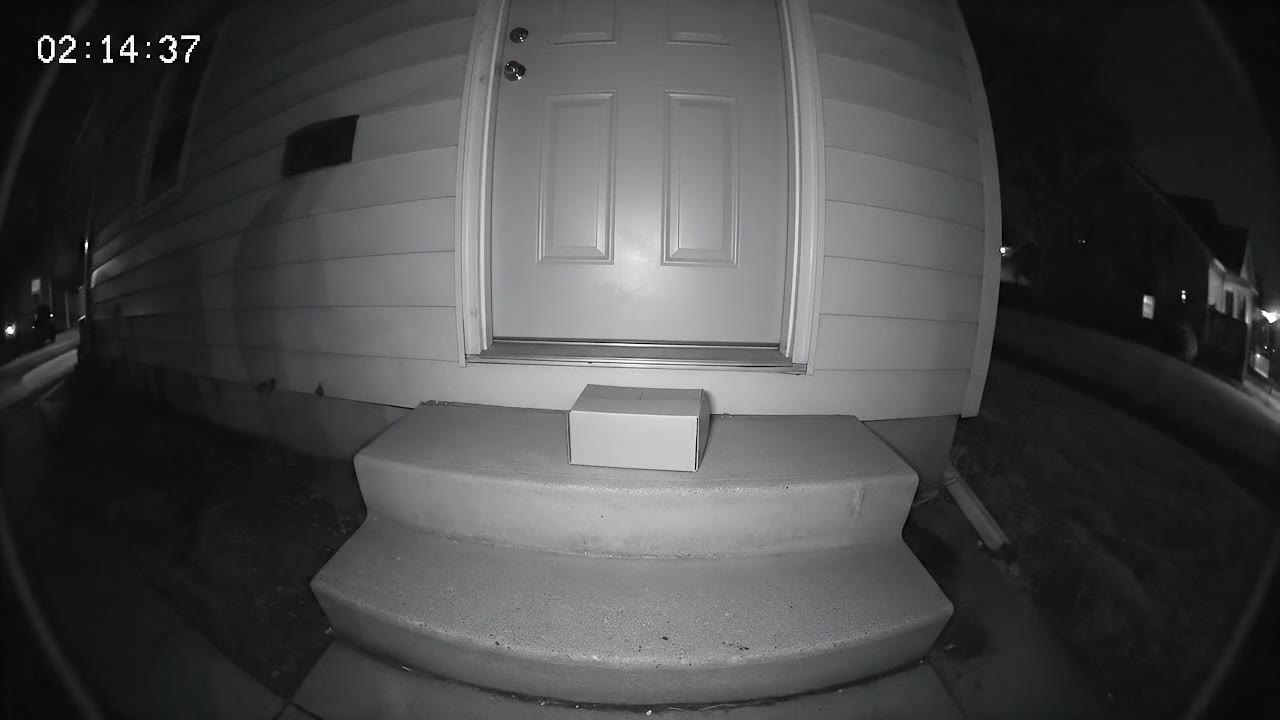
720P · 16:9 · 10S · Sound
Security camera footage from a fixed porch camera at night — grainy black-and-white infrared, a wide fisheye view of a front door, two steps and a delivered parcel, a timestamp in the top corner reading exactly "02:14:37". Nothing moves. Then a raccoon waddles into frame from the left, sniffs the parcel, looks straight up at the camera with glowing eyes, and drags the box off the step one determined tug at a time. The camera never moves; the picture stays low-resolution, noisy and slightly stuttering. No music — the hum of the night and the scrape of cardboard on concrete.
Strengths
What Veo 3.1 is good at
Dialogue, sound effects and ambient noise are generated with the picture, so a slammed door, a line of speech or a roll of distant thunder lands in step with the action.
Veo 3.1 aims for lifelike light and texture and follows cinematic language, so a prompt can set the shot, the lens, the camera move and the look of the film.
Every tier makes 16:9 for wide screens and 9:16 for phones, at 720p or 1080p, and the full model also makes 4K, so one model covers a trailer and a vertical social clip.
On DreamBench, send a prompt to Veo 3.1 as written for a single clip, or let DreamBench plan a film from your idea, with your references in every scene and any scene yours to redo.
At a glance
Veo 3.1 on DreamBench
8s
longest clip per generation
S1S2S3S4S5
5 min
longest video on DreamBench
depending on your plan
720p1080p4K
4K
top resolution
720p, 1080p and 4K
2
aspect ratios
16:9 and 9:16
Always on
sound
Generated with every clip
The model
What is Veo 3.1?
Made by Google DeepMind
Released October 2025
Video model
Clips up to 8 seconds
Veo 3.1 is a video model from Google DeepMind, released in October 2025 and made for filmmakers and storytellers. Each generation is one clip of 4, 6 or 8 seconds, widescreen (16:9) or portrait (9:16), and the model generates its sound along with the picture: dialogue, sound effects and ambient noise. It works from a written prompt, from a picture, or from reference images of a character, an object or a place.
According to Google, Veo 3.1 builds on Veo 3 with richer sound, truer textures and closer attention to the prompt, and keeps characters and settings consistent from scene to scene when it is given reference images. In January 2026 Google added 4K and sharpened 1080p, both produced with enhancement techniques. The family has 3 tiers: Veo 3.1 itself and Veo 3.1 Fast, generally available on Google Cloud since November 2025, and Veo 3.1 Lite, added in March 2026. All 3 generate sound, though Google says natural, consistent speech, especially in short lines, is still being improved, and it fully supports English prompts only.
To use Veo 3.1 on DreamBench, choose it on the Video page and paste a prompt: DreamBench sends it to the model as written and returns one clip. Or pick it in Film Studio and describe the video you want, with reference images if you have them: DreamBench writes the scene plan, has Veo 3.1 make each scene and joins the clips into one video. If a scene misses, give it new direction and regenerate just that scene.
Google designed the full model for finished productions, where picture quality comes first. It is the tier that takes your reference sheets and the only one that makes 4K. Choose it at 1080p or 4K for the final version of a video.
Resolution
720p, 1080p and 4K
Credits
From 39 per second
Plans
Plus, Ultra and Studio
Veo 3.1 Fast
Google built Fast for ads, social media content and quick tests of a creative idea. Choose it for product clips, vertical posts and drafts at 720p or 1080p.
Resolution
720p and 1080p
Credits
From 45 per second
Plans
Every plan
Veo 3.1 Lite
Google built Lite for trying ideas quickly and for making video in volume. Choose it to see how a prompt plays, or to make many short clips, before you refine it.
Resolution
720p and 1080p
Credits
From 24 per second
Plans
Every plan
The details
Veo 3.1 specs and credits
What you get when you make videos with it on DreamBench, where one model makes every scene of a video.
Made by
Google DeepMind
Longest clip
8 seconds per generation
Video length on DreamBench
Up to 30 seconds on Starter, 2 minutes on Plus and 5 minutes on Ultra and Studio
Resolution
720p, 1080p and 4K (4K on Plus, Ultra and Studio)
Aspect ratios
16:9 and 9:16
Sound
Always on: every clip is generated with sound
Reference images
Up to 8 per video; the first 4 are included, then 43 credits each
Plans
Veo 3.1 on Plus, Ultra and Studio; Veo 3.1 Fast and Veo 3.1 Lite on every plan
Credits
39 per second at 720p, 91 per second at 1080p and 133 per second at 4K, plus 183 per video
A 15-second 720p video with sound uses 768 credits. You always see the exact cost before you generate.
Good to know
When you choose Veo 3.1 at 720p, DreamBench makes the video on Veo 3.1 Fast; 1080p and 4K use the full Veo 3.1 model. Veo 3.1 Fast and Veo 3.1 Lite make 720p and 1080p. Every tier makes 16:9 or 9:16, always with sound.
DreamBench’s Video page sends your prompt to Veo 3.1, Fast or Lite exactly as you wrote it, up to 2,600 characters, and returns one clip of 4, 6 or 8 seconds. There is no scene plan, no character sheet and no opening frame in between, so every prompt idea on this page can be pasted there as it is.
In Film Studio, DreamBench plans the scenes from your idea and Veo 3.1 makes every one. A film clip runs up to 12 seconds on DreamBench, but Veo’s own limit is 8, so each Veo scene is 4, 6 or 8 seconds long, and a longer video is more scenes, joined.
Add up to 8 reference images to a film, each tagged as a character, creature, location or prop, and name one in your prompt with @ and its label. DreamBench builds a sheet from each, and Veo 3.1 takes up to 3 of those sheets in every scene they appear in. Google accepts reference images only on 8-second clips, so those scenes run 8 seconds.
Veo 3.1 Fast and Veo 3.1 Lite take no reference sheets on DreamBench. Instead, DreamBench first makes an opening frame for each scene from the sheets, and the model animates that frame, so your cast still carries from scene to scene.
To change a scene, give it new direction or a new reference image and regenerate just that scene. A redo costs the seconds of the scenes you redo, plus a base amount, and the rest of the video stays as it was. You can also have a film stop after its script and again after its cast, to approve them before Veo 3.1 shoots a scene.
Write a Veo 3.1 prompt the way Google’s guide sets it out: the shot and the camera, the subject, the action, the setting, then the light and the look. Give sound its own sentences after that: spoken lines in quotation marks, given to a named speaker, then the sound effects and the ambient noise.
In Google’s own tools, Veo 3.1 can also extend a clip, make a clip that moves from a first frame to a last one, add or remove an object, and return several takes of one prompt. On DreamBench a clip is one shot made from your prompt and references: a longer video is more scenes, and you change a scene by giving it new direction.
Estimate your credits
A Veo 3.1 video, as the composer prices it.
768credits
Available from Plus. Plus’s 4,400 monthly credits make about 5 videos like this. You always see the exact cost before you generate.
Side by side
Veo 3.1 compared
Veo 3.1 beside the models people weigh it against, as each runs on DreamBench. Every cell comes from the same tables as the spec sheet above.
Pick Veo 3.1 in the composer, or press Create with Veo 3.1 on this page.
Widescreen 16:9, one 6-second product shot.
Generate
Step 2
Describe your video
Write what should happen, or start from a template. Add reference images for the characters, products or places you want to see.
S1S2S3
Scene 1 keptScene 2 againScene 3 kept
Step 3
Generate, then refine
DreamBench plans the scenes, designs the characters and places, generates each scene with Veo 3.1 and joins them. Then change any scene you want to improve and keep the rest.
Prompt ideas
Prompt ideas for Veo 3.1
Start from one of these and change it however you like.
01
Last train, one line
Widescreen 16:9, one 8-second shot. Medium close-up on a 35mm lens, slow push-in. An elderly station guard in a navy coat and peaked cap stands on an empty platform at midnight, lifts his lamp toward a young woman running down the steps and calls, “You’ll want to hurry, love. She won’t wait.” Rain drifts through the yellow platform lights; wet tiles shine. Warm sodium light against deep blue shadow, soft film grain. SFX: hurried footsteps on wet stone, a door hissing open. Ambient noise: rain on the canopy, a train’s engine idling.
02
Headphones on a turntable
Widescreen 16:9, one 6-second product shot. A slow orbit at table height, macro lens, shallow depth of field. A pair of matte sage-green wireless headphones turns on a white plinth; the camera glides past the brushed-metal hinge to the soft leather cushion, and a single beam of light sweeps across the plain ear cup. Clean studio set, pale gray backdrop, crisp soft-box light with a gentle reflection on the surface. SFX: a soft mechanical click as the headband extends. Ambient noise: the quiet hum of a studio.
03
Kingfisher on the river
Widescreen 16:9, one 8-second shot. A locked-off wildlife shot on a long telephoto lens, eye level with the water. A kingfisher perches on a mossy branch over a slow river, bobs its head, then dives; it bursts back out with a small silver fish and lands on the same branch, water beading on its blue-orange feathers. Early morning, mist on the water, sunlight through willow leaves, natural documentary color. SFX: a sharp splash, wings fluttering. Ambient noise: the river trickling, birdsong in the trees.
04
Sizzle in the wok
Vertical 9:16, one 6-second shot. Extreme close-up from just above the pan, then a quick tilt up. A street cook tosses noodles, shrimp and green onions in a blackened wok; a burst of flame leaps up the side and the noodles fly in an arc before landing back in the pan. Night market stall, strings of bare bulbs, steam and smoke catching the light, rich warm tones. SFX: the roar of the burner, oil crackling, the metal ladle scraping the wok. Ambient noise: a busy market crowd.
05
Cobbled climb
Widescreen 16:9, one 8-second shot. Low tracking shot alongside the rider, then the camera slows and lets her pull ahead. A road cyclist in a red jersey stands on the pedals up a steep cobbled lane in a hill village, rocking the bike side to side; spectators lean in from both sides, clapping and shouting her on. Overcast spring afternoon, wet cobbles, flags strung between the houses, punchy documentary sports look. SFX: tires rattling over stone, heavy breathing, a bell ringing. Ambient noise: a cheering roadside crowd.
06
One tip, to camera
Vertical 9:16 for a phone screen, one 8-second shot. Handheld selfie framing at arm’s length, gently bobbing. A plant shop owner in a mustard cardigan holds up a small fern, smiles into the camera and says, “Water it from below. Trust me, it loves that.” She dips the pot into a tray of water behind her. Bright, cozy shop crowded with plants, soft window light, a natural phone-camera look. Her voice close to the microphone. Ambient noise: a shop bell, light chatter, a watering can trickling.
07
Clay fox bakes bread
Widescreen 16:9, one 8-second shot in stop-motion claymation style, slightly jerky frame rate, fingerprints visible in the clay. Medium shot of a tiny kitchen. A clay fox in a striped apron pulls a round loaf from a brick oven, sniffs it and declares, “Perfect. Absolutely perfect.” A clay mouse peeks over the table edge. Warm handmade set, felt curtains, a glowing orange oven. SFX: the oven door creaking, the crust crackling, a squeak from the mouse. Ambient noise: a fire crackling in the oven.
08
Two at the counter
Widescreen 16:9, one 8-second two-shot, static camera at counter height. In a small watch repair shop, an old watchmaker with a loupe on his forehead hands a gold pocket watch to a young man across the counter. The young man asks, “Will it keep time?” The watchmaker smiles and replies, “Better than either of us.” Afternoon sun through dusty glass, hundreds of clocks on the walls, warm brown tones, shallow depth of field. SFX: the watch lid snapping shut. Ambient noise: dozens of clocks ticking.
09
Kayak into the sea cave
Widescreen 16:9, one 8-second POV shot from the paddler’s eyes, wide-angle lens, the bow of a yellow kayak and a paddle in frame. The paddle dips left and right as the kayak glides out of bright sunlight into a dark sea cave; light dances on the rock ceiling, the water turns emerald, and the cave opens onto a hidden beach ahead. Clear turquoise water, limestone cliffs, natural adventure-film look. SFX: the paddle splashing, drips echoing off the rock. Ambient noise: waves slapping the cave walls.
10
Neon street, establishing
Widescreen 16:9, one 4-second establishing shot. A slow crane down from rooftop height to street level. A narrow city street at night after rain: neon signs in red and teal reflect in the puddles, a lone figure in a long coat crosses under an umbrella, steam rises from a grate. Moody film-noir lighting, deep shadows, glossy wet surfaces, anamorphic lens flare. SFX: footsteps splashing, a distant siren. Ambient noise: rain dripping from awnings, the low hum of traffic.
Still have questions?
Veo 3.1 FAQ
What is Veo 3.1?
Veo 3.1 is a video model from Google DeepMind, released in October 2025. It makes clips of 4, 6 or 8 seconds in widescreen (16:9) or portrait (9:16), from text, a picture or reference images, with dialogue, sound effects and ambient noise generated along with the picture. It comes in 3 tiers, Veo 3.1, Veo 3.1 Fast and Veo 3.1 Lite, and all 3 are on DreamBench.
How do I use Veo 3.1 on DreamBench?
There are 2 ways. On the Video page, pick Veo 3.1, Fast or Lite, paste a prompt, choose 16:9 or 9:16, the length and the resolution, and DreamBench sends the prompt to the model as written for one clip. In Film Studio, describe a whole video instead: DreamBench writes the scene plan, has Veo 3.1 make every scene and joins them, and you can redo any scene and keep the rest.
How much does Veo 3.1 cost on DreamBench?
Veo 3.1 is priced in credits: a rate for every second of video plus a base amount per video. The rate depends on the tier and the resolution, lowest on Lite at 720p and highest on the full model at 4K, and sound is always included. Credits come with a paid subscription, and you need no Google account or API key. The table on this page shows the current rates, and you always see the exact cost before you generate.
What is the difference between Veo 3.1, Veo 3.1 Fast and Veo 3.1 Lite?
They are the 3 tiers of Google’s Veo 3.1 family, and all 3 make video with sound in 16:9 or 9:16. Google built the full model for finished productions, Fast for ads and quick tests, and Lite for volume. On DreamBench, the full model makes 1080p and 4K and takes your reference sheets, with 720p running on Fast; Fast and Lite make 720p and 1080p and animate an opening frame DreamBench makes for each scene.
How is Veo 3.1 different from Veo 3?
Google says Veo 3.1 builds on Veo 3 with richer sound, truer textures and closer attention to the prompt, and better results when it starts from a picture. It also takes reference images of characters, objects and places, which Google calls ingredients, and since January 2026 it offers 4K and sharper 1080p. Veo 3.1 also added the Fast and Lite tiers. DreamBench runs Veo 3.1, not Veo 3.
How long can a Veo 3.1 video be?
One Veo 3.1 clip is 4, 6 or 8 seconds on all 3 tiers. On DreamBench’s Video page, that one clip is the whole video. In Film Studio a video is several clips: DreamBench plans the scenes, makes each one with Veo 3.1 and joins them, up to 30 seconds on Starter, 2 minutes on Plus and 5 minutes on Ultra and Studio. In Google’s own tools, a clip can also be extended.
What resolution does Veo 3.1 make, and is it real 4K?
Veo 3.1 makes 720p, 1080p and 4K; on DreamBench, 720p runs on Veo 3.1 Fast and 1080p and 4K on the full model, which is the only tier with 4K. Fast and Lite make 720p and 1080p. Google says its 4K and sharper 1080p, added in January 2026, are produced with enhancement techniques, so 4K is an enhanced picture at that size. Choose 720p for drafts and 1080p or 4K for a final cut.
What aspect ratios does Veo 3.1 support?
2: widescreen 16:9 and vertical 9:16, on all 3 tiers. 16:9 suits YouTube, trailers and presentations; 9:16 is the format for TikTok, Reels and YouTube Shorts. Veo 3.1 makes no square or cinema-wide frame, so choose another model on DreamBench for those. Pick the ratio in the composer, or start your prompt with “Vertical 9:16” or “Widescreen” and DreamBench sets it for you.
Does Veo 3.1 generate audio and dialogue?
Yes, always. Every Veo 3.1 clip on all 3 tiers is generated with its sound, whether dialogue, sound effects or ambient noise, and it can’t be switched off. Describe what should be heard as well as what should be seen, in separate sentences after the picture. Google says natural, consistent speech, especially in short lines, is still being improved, so give each line room in the shot.
How do I write dialogue for Veo 3.1?
Give each line to a named speaker and put the words in quotation marks, for example: The guard calls, “You’ll want to hurry.” For 2 speakers, write the lines in order, each with its speaker. Keep the lines short enough to say in the clip, at about 2 words a second, so no more than 12 to 14 words in an 8-second shot. If a line is cut off or misspoken, shorten it and regenerate.
What languages does Veo 3.1 understand and speak?
Google says English prompts are fully supported, and that it hasn’t evaluated other languages, though they may work. For the most reliable results, write the prompt in English, and if a character should speak another language, say so and write the line in that language, accepting that the delivery is less certain. DreamBench’s own pages and composer are in 6 languages; the model’s understanding is Google’s.
What makes a good Veo 3.1 prompt?
Describe one shot in Google’s order: the shot and camera move, the subject, the action, the setting, then the light and the style. Then the sound in its own sentences: quoted lines with a named speaker, sound effects and ambient noise. Use plain, specific words, one main action per clip, and say what you want rather than what you don’t, such as an empty street instead of no people.
Can Veo 3.1 turn an image into a video?
Yes. Google’s Veo 3.1 animates a picture you give it as the first frame. On DreamBench, upload your photo as a reference image in Film Studio: on Veo 3.1 it guides each scene as a reference sheet, so your person, pet or product appears in the scene, and on Fast and Lite DreamBench makes an opening frame from it for the model to animate. The Video page works from text alone.
How do reference images work with Veo 3.1?
Google lets Veo 3.1 take up to 3 reference images of a person, character or product and keep their look in the clip, a feature it calls ingredients to video. On DreamBench, add up to 8 reference images to a film and tag each one; DreamBench builds a sheet from each, and Veo 3.1 takes up to 3 of them in each scene. Google only accepts references on 8-second clips, so those scenes run 8 seconds.
Does Veo 3.1 support first and last frame?
Google does: in its own tools and API, Veo 3.1 and its Fast and Lite tiers can make a clip that starts on one picture and ends on another, with the motion between them generated from the prompt. DreamBench’s composer has no slot for an end frame. On DreamBench, Fast and Lite open each scene on a frame made from your references, and where a scene ends is written in its prompt.
Are Veo 3.1 videos watermarked?
Google marks videos made with Veo with SynthID, an invisible watermark in the picture that identifies them as AI-generated, and Google offers a way to check for it. You can’t see it and it doesn’t change how the video looks. On DreamBench, Starter videos also carry a small visible DreamBench watermark, which Plus, Ultra and Studio remove.
Can I use Veo 3.1 videos commercially?
Yes. DreamBench’s Terms of Use allow personal and commercial use of what you make with Veo 3.1, including ads, product videos, social posts and client work. You need the rights to anything you upload, such as photos of people, products or logos, and generated videos may not be exclusive to you or protected by copyright. Starter videos carry a DreamBench watermark, which Plus and above remove.
Why doesn’t my Veo 3.1 video match my prompt?
Usually the clip has too much to do. Veo 3.1 has 8 seconds at most, so give each clip one main action, one camera move and short lines. Name who does what and where, in plain words, and describe what you want instead of what you don’t. If a Film Studio scene still misses, give that scene new direction or a reference image and regenerate it alone; the others stay as they are.
How do I keep characters consistent across Veo 3.1 shots?
Give DreamBench a reference image of each character, tagged as a character, and name them in your prompt with @ and their label. DreamBench builds a sheet from each and reuses it in every scene they appear in: as a reference on Veo 3.1, or in the opening frame on Fast and Lite. Describe each character the same way throughout your brief, down to their clothes.
How does Veo 3.1 compare with Kling 3.0 and Seedance 2.5?
They suit different jobs. Veo 3.1 makes clips of up to 8 seconds in 16:9 or 9:16, always with sound, and offers 4K. Kling 3.0 makes takes of up to 15 seconds, with sound on or off and lip-synced dialogue in 5 languages. Seedance 2.5 runs up to 30 seconds in one take, with sound on or off. Kling 3.0 and Seedance 2.5 also offer more aspect ratios. The compared table lists each.
Which DreamBench plans include Veo 3.1?
Veo 3.1 on Plus, Ultra and Studio; Veo 3.1 Fast and Veo 3.1 Lite on every plan. Video length depends on the plan: up to 30 seconds on Starter, 2 minutes on Plus and 5 minutes on Ultra and Studio.
Were the example videos on this page made with Veo 3.1?
Yes. Every film on this page is a published DreamBench template made with Veo 3.1, shown with the prompt that made it. No film or still from another model appears on this page.
Veo 3.1 is developed by Google DeepMind. DreamBench is an independent platform that offers Veo 3.1 alongside other models, and isn’t affiliated with or endorsed by Google DeepMind. The facts on this page were last checked on . Veo 3.1 and Google DeepMind are trademarks of their owners, used here only to name the model and its developer.
Make your video
Create withVeo 3.1
Describe the video you have in mind. DreamBench plans the scenes, and you change the ones you want to improve.