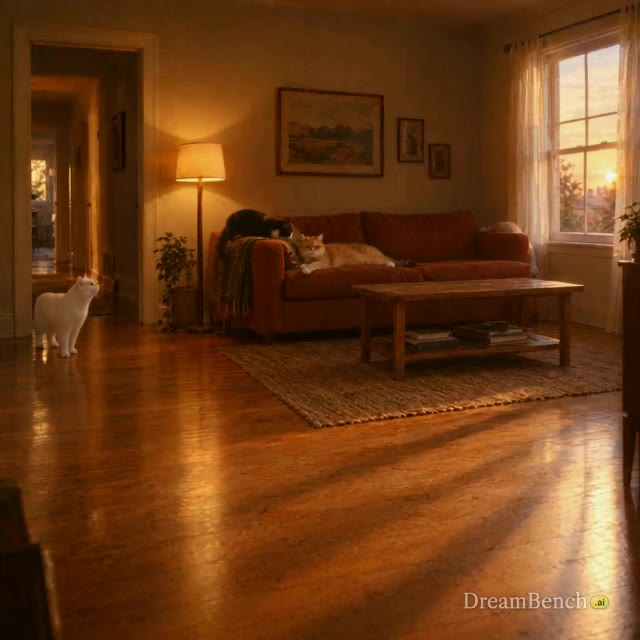
Seedance 2.5
Generate a melo-drama love story about @yickshuncat finding out that @cat_one is cheating on her with @cat_two the scene ends with a climatic slap on @cat_one . The whole clip should be in madarin with english subtitles.
18 video models, one studio
An AI video generator turns a written idea or a picture into video. DreamBench goes a step further: describe your idea and it writes the script, plans every scene and shot, and joins them into one finished video. You can redo any scene without starting over, and choose from 18 models, including Seedance, Veo and Kling, in one place.
Create with Seedance 2.5 opens Film Studio with your idea, on DreamBench’s default model. You can change the model, length and shape there before anything is made.
New to DreamBench? Create a free account to start. Making videos uses credits from a plan.
Every video on DreamBench goes through the same steps, however long it runs. You can stop to check each one, or let it run straight through from your idea to the finished video.
Write your idea in a line or a page, or start from a template. Add pictures of the people, products or places that should appear, then pick the model, length, shape and resolution. The composer shows how many credits the video will use before you start.
DreamBench writes the script: a title, a one-line summary and every scene and shot in a sentence. With Review each step on, it stops here so you can read the plan before anything is drawn.
Each character, prop and location gets a reference sheet that every scene is drawn from, so a face or a product stays recognizable from one scene to the next. You approve the cast before the scenes are made.
The model you chose makes every shot, and DreamBench joins them into one video. If a scene isn’t right, give it a new direction and regenerate just that scene; the rest stay as they are.
Most AI video models make one clip at a time, a few seconds long. A story, an ad or an explainer needs more than one shot: a beginning, a middle and an end, with the same people and places throughout. DreamBench is built for that. It plans the whole video first, then generates each shot on the model you picked and edits them together in order.
The script lists every scene and shot before the first one is rendered. With Review each step on, you read it first and can change course while it costs the least.
Open a finished video, choose Edit scenes and give one scene a new direction. DreamBench regenerates that scene, keeps the others and puts the video back together. You pay for the seconds you regenerate plus a small edit fee.
Your pictures and the cast sheets go with every shot, and one model makes the whole video, so the style, the faces and the setting hold together from scene to scene.
Depending on the model, the longest clip one generation makes is 8 to 30 seconds. DreamBench joins as many shots as the video needs, up to 5 minutes on the Ultra plan.
18 video models from ByteDance Seed, Google DeepMind, Kling AI, Alibaba Cloud, xAI, MiniMax, Lightricks and ShengShu Technology run in the same studio. Pick one for a video and it makes every scene, or try the same idea on another model from the same account. The table is read from the settings the composer uses, so it matches what you can choose.
| Model | Longest clip | Sound | First and last frame | Resolutions | Aspect ratios |
|---|---|---|---|---|---|
| Seedance 2.5 | 30 s | On or off | Yes | 480p, 720p, 1080p | 1:1 · 16:9 · 9:16 · 4:3 · 21:9 |
| Kling 4.0 | 30 s | Always on | Yes | 720p, 1080p | 1:1 · 16:9 · 9:16 · 4:3 · 21:9 |
| HeyGen Video 1 | 15 s | Always on | First frame only | 720p, 1080p | 1:1 · 16:9 · 9:16 · 4:3 · 21:9 |
| FLUX 3 Max | 20 s | On or off | Yes | 720p, 1080p | 1:1 · 16:9 · 9:16 · 4:3 · 21:9 |
| Gemini Omni Flash | 10 s | Always on | First frame only | 720p, 1080p, 4K | 16:9 · 9:16 |
| Wan 3.0 | 30 s | Always on | Yes | 720p, 1080p | 1:1 · 16:9 · 9:16 · 4:3 |
| MiniMax H3 Max | 15 s | Always on | Yes | 720p, 1080p | 1:1 · 16:9 · 9:16 · 4:3 · 21:9 |
| Seedance 2.0 | 15 s | On or off | Yes | 720p, 1080p, 4K | 1:1 · 16:9 · 9:16 · 4:3 · 21:9 |
| Google Veo 3.1 | 8 s | Always on | Yes | 720p, 1080p, 4K | 16:9 · 9:16 |
| Veo 3.1 Fast | 8 s | Always on | Yes | 720p, 1080p | 16:9 · 9:16 |
| Veo 3.1 Lite | 8 s | Always on | Yes | 720p, 1080p | 16:9 · 9:16 |
| HappyHorse 1.1 | 15 s | Always on | First frame only | 720p, 1080p | 1:1 · 16:9 · 9:16 · 4:3 · 21:9 |
| Kling 3.0 | 15 s | On or off | Yes | 720p, 1080p | 1:1 · 16:9 · 9:16 · 4:3 · 21:9 |
| Wan 2.7 | 15 s | On or off | Yes | 720p, 1080p | 1:1 · 16:9 · 9:16 · 4:3 |
| LTX-2.3 | 10 s | On or off | Yes | 720p, 1080p, 4K | 16:9 · 9:16 |
| Vidu Q2 | 10 s | Music on or off | First frame only | 720p, 1080p | 1:1 · 16:9 · 9:16 · 4:3 |
| MiniMax H3 | 15 s | Always on | Yes | 720p, 1080p | 1:1 · 16:9 · 9:16 · 4:3 · 21:9 |
| Grok Imagine 1.5 | 15 s | Always on | First frame only | 720p, 1080p | 1:1 · 16:9 · 9:16 · 4:3 |
The longest clip is what a model makes in one generation; a DreamBench video joins as many shots as it needs. Google Veo 3.1 needs the Plus plan or above; every other model is on every plan.
Start from what the video needs. For one long, unbroken take, pick a model with a long clip: Seedance 2.5, Kling 4.0 and Wan 3.0 make up to 30 seconds at a time. For dialogue and ambience, pick one whose sound is always on, or one with a switch if you plan to add music later. To end a shot on a frame you choose, use a model marked Yes for first and last frame. For a 4K master, use Gemini Omni Flash, Seedance 2.0, Google Veo 3.1 or LTX-2.3. Each model’s page has its prompts, limits and costs.
Many video models now make sound with the picture: dialogue, ambience, effects and music in one pass. On DreamBench, Kling 4.0, HeyGen Video 1, Gemini Omni Flash, Wan 3.0, MiniMax H3 Max, Google Veo 3.1, Veo 3.1 Fast, Veo 3.1 Lite, HappyHorse 1.1, MiniMax H3 and Grok Imagine 1.5 always make sound. Seedance 2.5, FLUX 3 Max, Seedance 2.0, Kling 3.0, Wan 2.7 and LTX-2.3 have a switch, so you can turn it off. Vidu Q2 adds background music only.
The sound is the model’s own: you can’t upload a voice or a soundtrack for a model to lip-sync. A video’s cost depends on whether sound is on, and you see it before you generate. More in native audio and AI lip sync.
Published templates, each made on DreamBench from the prompt shown with it. Recreate one as it is, or change it and make it your own.
Seedance 2.5
Generate a melo-drama love story about @yickshuncat finding out that @cat_one is cheating on her with @cat_two the scene ends with a climatic slap on @cat_one . The whole clip should be in madarin with english subtitles.
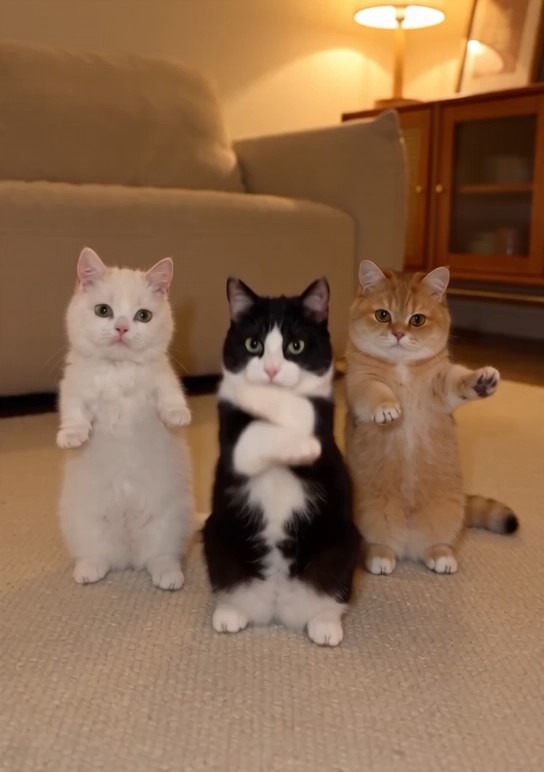
Seedance 2.0
Change the background to a different background, but then swap the 3 cats for @yickshuncat , @cat_two and @cat_one.
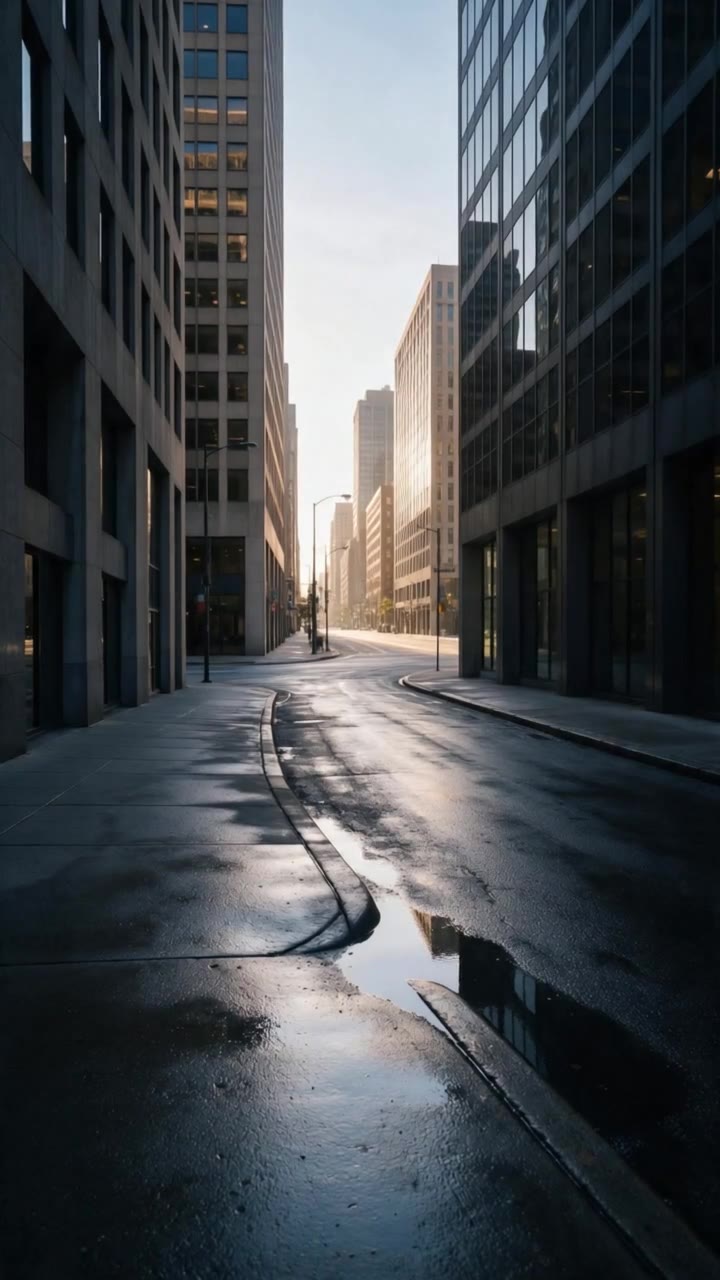
Kling 3.0
A runner in electric-yellow running shoes sprints through an empty city at first light. Tight on the shoes striking wet pavement, splashing through a shallow puddle, springing off a curb. She rounds a corner into full sun and stops, breathing hard, grinning. Final shot: the shoes, mud-flecked, planted on the curb edge.
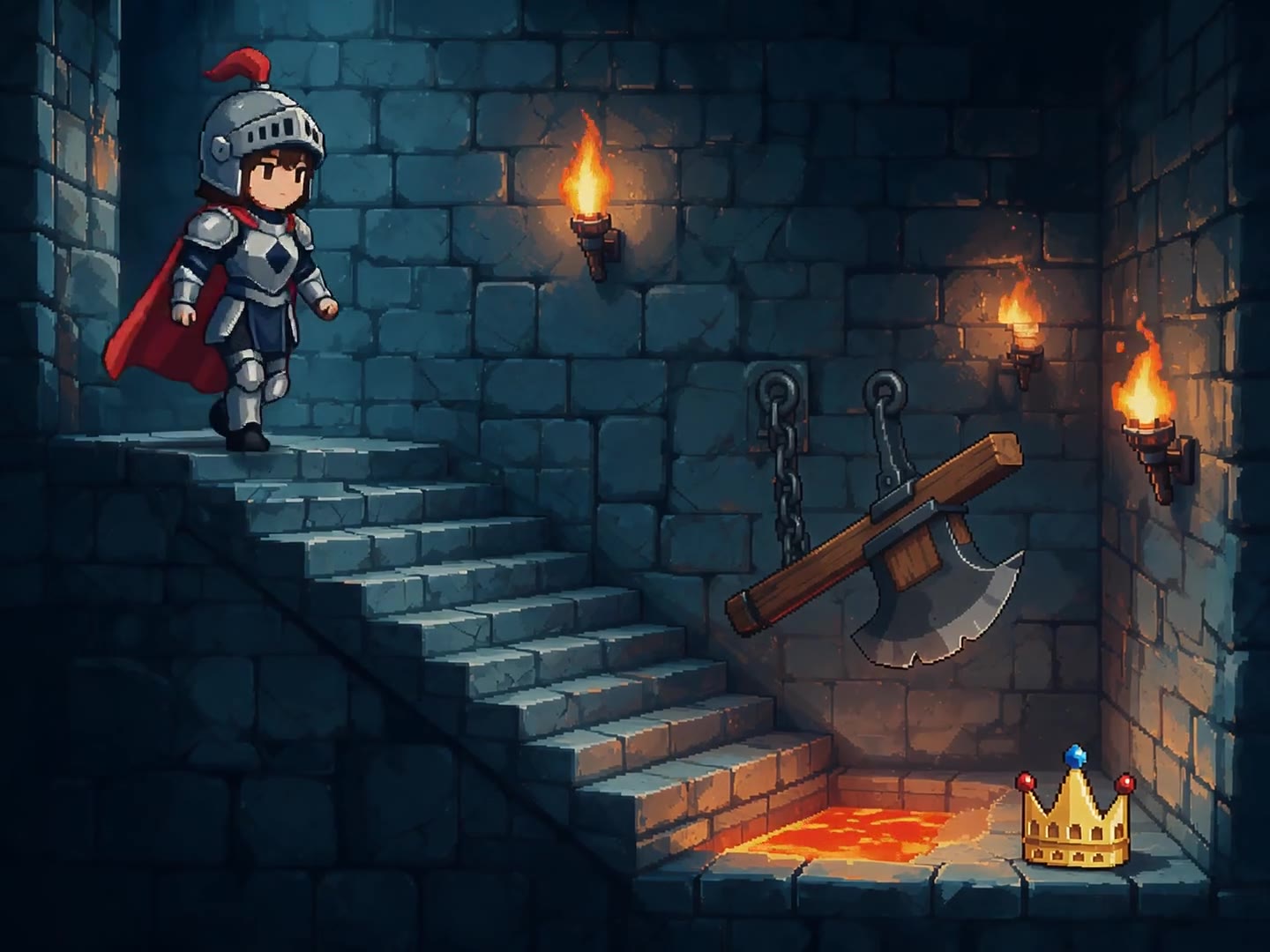
Wan 2.7
Pixel-art animation, 16-bit style. A tiny knight sprite descends a torch-lit dungeon staircase, pixels flickering with the flames. She dodges a swinging pixel axe, hops a gap over pixel lava, and lifts the lost crown as it sparkles in a four-frame twinkle. Chiptune-adjacent bleeps as SFX only.
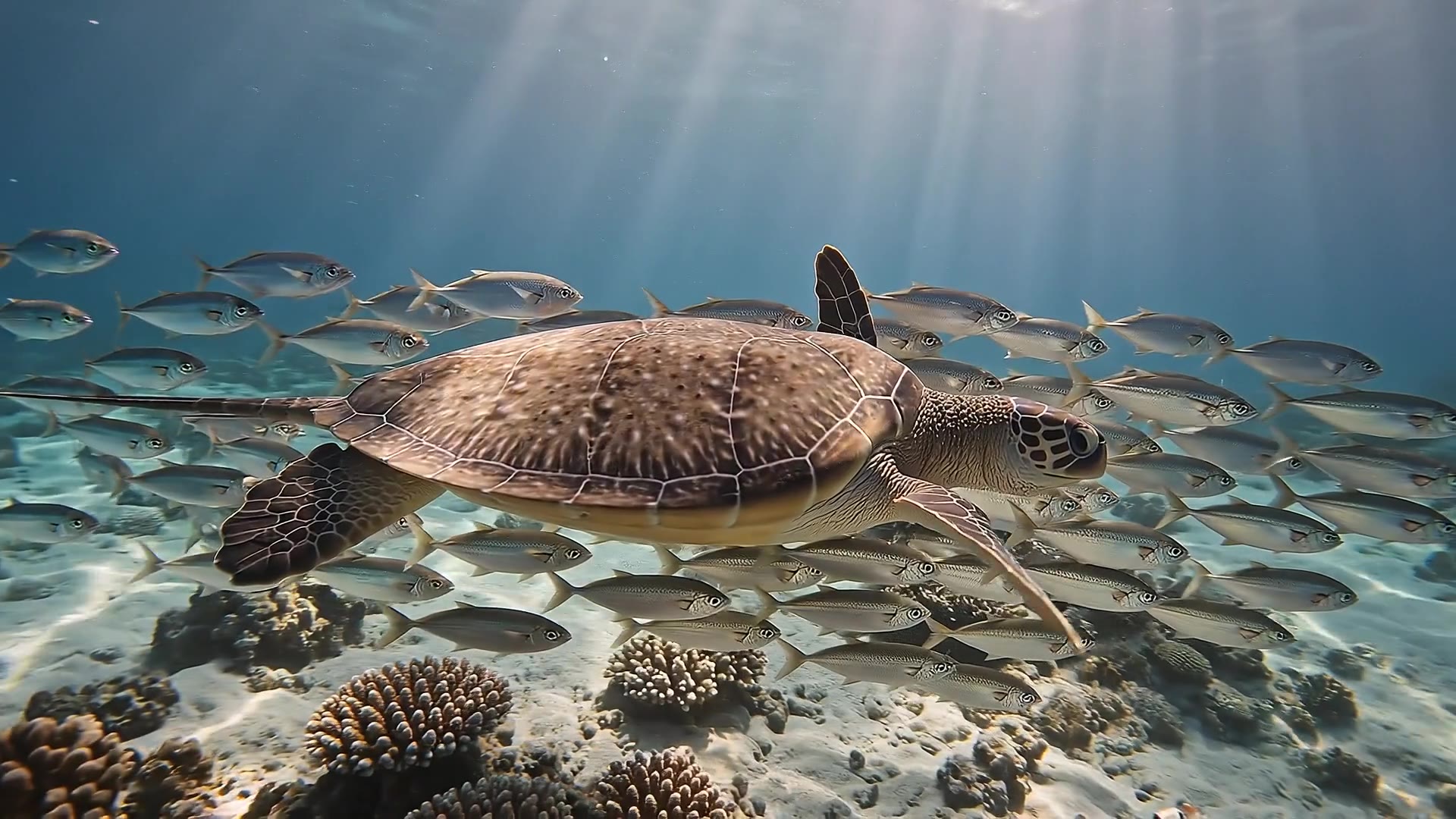
Google Veo 3.1
Underwater at sunrise: light shafts sweep across a coral reef as a sea turtle glides through a school of silver fish that parts around it like a curtain. A ray lifts from the sand in a slow wingbeat of silt. The turtle rises toward the glittering surface and breaks it into the sun. Muffled underwater ambience, then one clear breath.
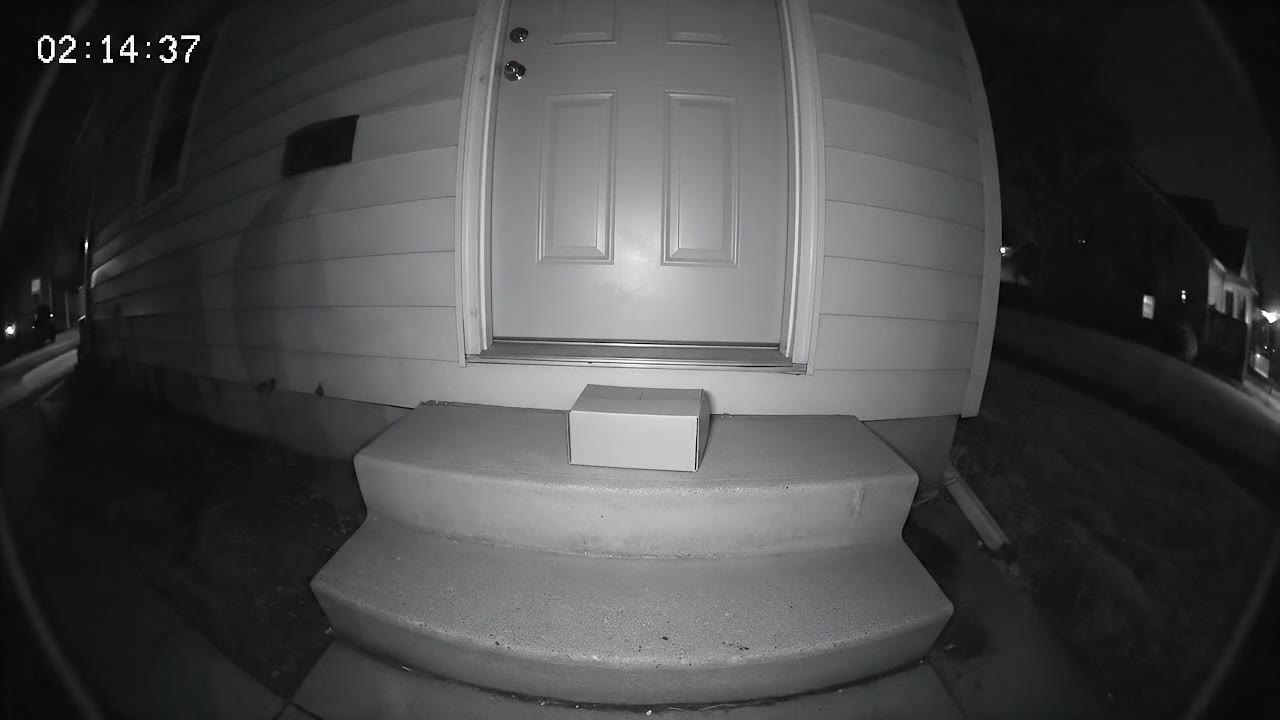
Veo 3.1 Fast
Security camera footage from a fixed porch camera at night — grainy black-and-white infrared, a wide fisheye view of a front door, two steps and a delivered parcel, a timestamp in the top corner reading exactly "02:14:37". Nothing moves. Then a raccoon waddles into frame from the left, sniffs the parcel, looks straight up at the camera with glowing eyes, and drags the box off the step one determined tug at a time. The camera never moves; the picture stays low-resolution, noisy and slightly stuttering. No music — the hum of the night and the scrape of cardboard on concrete.
Describe the product, the audience and the moment you want people to remember, and Film Studio plans the ad scene by scene. For the closing shot, the logo animation tool turns your logo into a short clip. Ads Studio, DreamBench’s studio made for ads, makes video, image and avatar ads from your product.
Give DreamBench a premise or a full page of story, and it writes the script, designs the cast and cuts the scenes together. When one shot misses, fix that shot instead of starting the film again.
Make portrait 9:16 clips for TikTok, Reels and Shorts, or square ones for a feed. To put your own twist on a trend or a clip you already have, Morph swaps, adds or restyles anything in it from your own words.
Start from a product photo and show it in use, in a setting of your choice. The product photo to video tool turns one picture into a clip; in Film Studio the photo becomes a reference for every scene.
Animate a still with the image to video tool, or bring an old family photo back to life. In a longer video, your pictures become the references the scenes are drawn from.
No. You can create a free account, but making videos uses credits, and credits come with a plan. Plans start at $9.99 a month for 1,100 credits on Starter, and every plan includes multi-scene generation, scene editing and every model except Google Veo 3.1, which starts on Plus.
A video’s cost in credits depends on the model, the length, the resolution and whether sound is on, and you see the exact figure before you generate. If a generation fails, its credits come back automatically.
Starter
$9.99 a month · 1,100 credits · videos up to 30 seconds
Plus
$39.99 a month · 4,400 credits · videos up to 2 minutes
Ultra
$99.99 a month · 11,000 credits · videos up to 5 minutes
Studio
$399.99 a month · 44,000 credits · videos up to 5 minutes
Starter videos include a small DreamBench watermark. Plus, Ultra and Studio remove it.
See every plan and what it includesAn AI video generator is software that makes video from a text description, a picture or both, using a model trained on video. Most make one clip of a few seconds per request. DreamBench adds a planning step: it turns your idea into a script of scenes and shots, generates each one and joins them into a single video you can edit scene by scene.
There isn’t one best AI video generator; the right one depends on the video. Compare the longest clip a model makes in one go, whether it makes sound and whether you can switch it off, the resolutions and shapes it supports, whether it can end on a frame you choose, and what a second of video costs. DreamBench puts 18 models side by side in one account, so you can try the same idea on several and keep the one that fits.
Yes. Many current models make sound with the picture, from dialogue and ambience to effects and music. On DreamBench, Kling 4.0, HeyGen Video 1, Gemini Omni Flash, Wan 3.0, MiniMax H3 Max, Google Veo 3.1, Veo 3.1 Fast, Veo 3.1 Lite, HappyHorse 1.1, MiniMax H3 and Grok Imagine 1.5 always make sound, Seedance 2.5, FLUX 3 Max, Seedance 2.0, Kling 3.0, Wan 2.7 and LTX-2.3 have a switch, and Vidu Q2 adds background music only. You can’t upload your own voice or soundtrack for a model to lip-sync.
Depending on the model, the longest clip one generation makes is 8 to 30 seconds. A longer video is several clips planned together: DreamBench writes the shots, generates each one and joins them, up to 30 seconds on Starter, 2 minutes on Plus and 5 minutes on Ultra and Studio.
Yes. The image to video tool turns one photo into a short clip on the model you pick. In Film Studio, add pictures of your characters, products or places to the composer, and DreamBench uses them as references for every shot, so a whole video can start from your images.
Yes. Our Terms of Use allow personal and commercial use, including ads and client work. You need the rights to anything you upload, and generated videos may not be exclusive to you or protected by copyright.
Yes. Open a finished video, choose Open shot editor, pick the shot you want to change and say what to change. DreamBench regenerates it, keeps the other shots and puts the video back together. You can compare versions of the shot before you choose Apply changes. You pay for the seconds you regenerate plus a small edit fee, not for the whole video.
Add a picture of the character, or let DreamBench design one from your story, and it becomes a reference sheet that every scene is drawn from. Naming it with an @handle in your prompt tells the writer where it appears. One model makes the whole video, which also keeps the look consistent.
18 video models: Seedance 2.5, Kling 4.0, HeyGen Video 1, FLUX 3 Max, Gemini Omni Flash, Wan 3.0, MiniMax H3 Max, Seedance 2.0, Google Veo 3.1, Veo 3.1 Fast, Veo 3.1 Lite, HappyHorse 1.1, Kling 3.0, Wan 2.7, LTX-2.3, Vidu Q2, MiniMax H3 and Grok Imagine 1.5. Pick one for each video and it makes every scene. Google Veo 3.1 needs the Plus plan or above; every other model is on every plan.
No. A sentence describing what you want is enough to start: DreamBench writes the script and the shots. For more control, write the scenes yourself, add reference pictures, or build a detailed prompt with the AI video prompt generator.
DreamBench makes square, portrait, widescreen, 4:3 and 21:9 videos, though not every model offers every shape. Resolutions run from 480p on Seedance 2.5 to 4K on Gemini Omni Flash, Seedance 2.0, Google Veo 3.1 and LTX-2.3; 4K is on the Plus plan and above.
Yes. Projects are private by default, and DreamBench has no public project pages or share links.
No. DreamBench doesn't use your prompts, uploads or videos to train or fine-tune AI models, and any future training program would be opt-in.
Starter videos include a small DreamBench watermark. Plus, Ultra and Studio remove it.
Describe it in a sentence, read the plan, then change any scene until it works.